
n8n Automation for Business: How to Automate Forms, Google Sheets and Emails
Introduction: Still Managing Business Tasks Manually?
Imagine receiving a new customer enquiry through your website.
You open the form responses, copy the customer’s details into Google Sheets, prepare a welcome email and send it manually. Then you repeat the same process for every new enquiry.
It might take only a few minutes per customer, but those minutes add up when your business receives multiple enquiries every day.
What if these tasks could happen automatically?
That’s where n8n automation comes in. Instead of manually moving information between different applications, you can connect them into a workflow that runs automatically when a specific event occurs.
For example, when someone submits a form, n8n can send their details to Google Sheets and trigger a welcome email without requiring you to perform each step yourself.
What Is n8n Automation?
n8n is a workflow automation platform that allows you to connect different applications, APIs and services to automate repetitive tasks.
It uses a visual workflow builder where you connect individual steps, called nodes, to create an automated process.
For example:
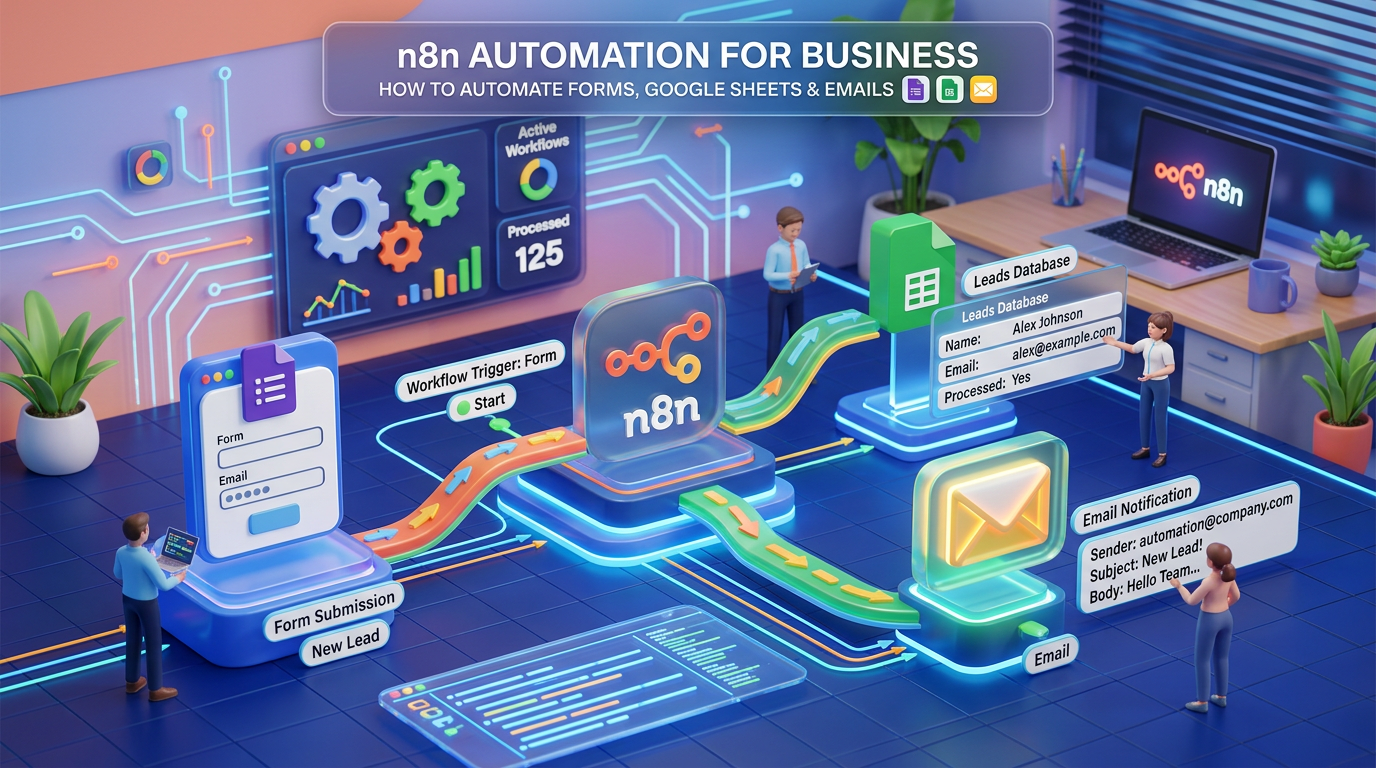
Form Submission → Google Sheets → Welcome Email
Each node performs a specific action. When the workflow receives a new form submission, it processes the information and passes it to the next connected step.
Unlike traditional automation that relies only on predefined application integrations, n8n also supports APIs, webhooks, conditional logic and custom code for more flexible workflows.
Businesses can use n8n through its hosted cloud offering or self-host an instance, depending on their technical requirements.
How to Automate Form Submissions Using n8n
Let’s explore a simple business automation that connects a form, Google Sheets and email.
Step 1: Capture New Customer Enquiries
Start with a website contact form, lead generation form or another form service that can send data to your workflow.
When a customer submits their details, the workflow receives information such as:
- Customer name
- Email address
- Phone number
- Service or product of interest
- Date and time of submission
You can use a form trigger, webhook or compatible integration in n8n, depending on the form platform.
Step 2: Send the Details to Google Sheets
Next, connect a Google Sheets node to your workflow.
Configure it to add a new row whenever a valid form submission arrives. The customer’s name, email address and other relevant details can be mapped to the corresponding spreadsheet columns.
Your lead register updates automatically, reducing repetitive data entry and making it easier to track incoming enquiries.
Step 3: Send an Automatic Welcome Email
Add an email node after the Google Sheets step.
You can configure it to send a personalised acknowledgement, such as:
“Hi [Customer Name], thank you for contacting us. We have received your enquiry and will get back to you soon.”
Depending on your requirements, the email can be sent through a supported email integration or an SMTP connection.
You can also customise the message based on the service selected by the customer.
Step 4: Test and Activate the Workflow
Before activating the automation, submit a test form and check whether:
- The workflow receives the correct information.
- The Google Sheet records the details accurately.
- The email reaches the intended recipient.
- Failed steps generate useful error information.
- Duplicate submissions are handled appropriately.
Once testing is complete, activate the workflow and monitor its execution history.
The result: A single form submission can trigger multiple business actions without requiring you to handle each step manually.
How Can Businesses Use n8n Automation?
The form-to-email workflow is only one example. n8n can support a wide range of repetitive business processes.
1. Lead Generation and Follow-Ups
Automatically capture website enquiries, organise leads in a spreadsheet or CRM, notify your sales team and send acknowledgement emails.
This helps businesses maintain an organised lead database and respond to potential customers more consistently.
2. Customer Onboarding
When a new customer signs up, trigger a welcome email, create a customer record and notify the team responsible for onboarding.
This reduces administrative work and helps standardise the customer onboarding process.
3. Invoice and Payment Notifications
Connect compatible accounting or payment systems to notify the appropriate team when an invoice is created, a payment is received or an overdue payment requires attention.
Financial actions should include suitable validation and approval controls.
4. Marketing Automation
Connect lead forms, email marketing platforms and customer databases to organise contacts and trigger relevant follow-up activities.
Ensure that your workflows respect consent, unsubscribe preferences and applicable data protection requirements.
5. Reporting and Daily Summaries
Collect information from connected applications, prepare a daily summary and send it to your email or team communication channel.
This can reduce the time spent checking several platforms individually.
6. AI-Powered Business Workflows
n8n can also connect supported AI models and services to business processes.
For example, an incoming enquiry could be classified by service category, summarised for a sales representative or routed to the appropriate team.
AI-generated results should be validated before they trigger important business decisions or external actions.
n8n vs Manual Work: What’s the Difference?
| Manual Process | Automated Process Using n8n |
|---|---|
| Check each form submission | Trigger a workflow when data arrives |
| Copy details into a spreadsheet | Add a row automatically |
| Write and send each welcome email | Send a configured email automatically |
| Repeat the same steps for every lead | Reuse the workflow for new submissions |
| Identify errors by checking each task | Monitor executions and configure error alerts |
Automation does not eliminate every task. You still need to configure the workflow, test it, maintain integrations and handle exceptions.
However, it can significantly reduce repetitive work when the process is suitable for automation.
Is n8n Suitable for Small Businesses?
Yes. Small businesses can use n8n to connect applications without building a separate custom integration for every task.
It may be particularly useful for:
- Startups handling increasing numbers of leads.
- Digital marketing agencies managing multiple clients.
- Consultants receiving enquiries through website forms.
- E-commerce businesses coordinating customer communications.
- Service businesses that rely on spreadsheets and email.
- Teams that want to connect existing tools into one workflow.
The best starting point is a repetitive process with clear inputs, predictable steps and a measurable business benefit.
Is n8n Free to Use?
n8n offers different ways to run workflows, including a cloud service and self-hosting options.
Self-hosting can provide greater control over infrastructure and data, but it requires suitable technical knowledge and ongoing maintenance. Hosting, infrastructure, external APIs and other connected services may involve additional costs.
Cloud plans, features and usage limits can change, so check the official n8n website for current pricing and deployment options before choosing a setup.
Common Mistakes to Avoid When Building n8n Workflows
1. Skipping Workflow Testing
Test normal submissions, missing fields, invalid email addresses and temporary service failures before using the workflow in production.
2. Ignoring Duplicate Submissions
Repeated form events can create duplicate records or send multiple emails. Add deduplication or idempotency controls where appropriate.
3. Exposing Sensitive Information
Protect credentials, API keys and customer data. Limit access to workflows and spreadsheets, and use secure credential management.
4. Forgetting Error Handling
A workflow can fail if an external service is unavailable or an authentication token expires. Configure appropriate error notifications and retry behaviour.
5. Automating an Unclear Process
Automation works best when the underlying process is already understood. Simplify unnecessary steps before connecting applications.
How to Get Started with n8n Automation
If you’re new to workflow automation, start with one simple task rather than trying to automate your entire business.
- Identify a repetitive task that consumes time every day.
- Choose the applications involved in that task.
- Create a workflow using suitable triggers and action nodes.
- Test the workflow with sample data.
- Add error handling and security controls.
- Monitor the results and improve the workflow as your business grows.
Measure the time saved, error rate and response speed to determine whether the automation is delivering real value.
Frequently Asked Questions About n8n Automation
What Is n8n Used For?
n8n is used to automate workflows by connecting applications, APIs, databases and other services. Common examples include lead management, email notifications, reporting and AI-assisted business processes.
Can n8n Connect Google Forms to Google Sheets?
Yes, provided the workflow is configured with a suitable trigger or integration and the necessary Google permissions. Depending on the setup, a form submission can initiate a workflow that records information in Google Sheets.
Can n8n Send Automatic Emails?
Yes. You can configure a workflow to send emails through supported integrations or an SMTP connection when a specified event occurs.
Do I Need Coding Skills to Use n8n?
Not necessarily. Many workflows can be created using its visual interface. More complex integrations, custom data transformations and API operations may require technical knowledge or code.
Can n8n Automate My Entire Business?
n8n can automate many repeatable processes, but not every business activity should be fully automated. Tasks involving judgement, sensitive data or significant financial and operational consequences may need human review and approval.
Is n8n Better Than Manual Business Processes?
For repetitive, rule-based tasks, automation can reduce manual effort and improve consistency. The right choice depends on workflow complexity, maintenance requirements, integration costs and the consequences of errors.
Leave a Reply