
Complete Kling 3.0 Tutorial: How to Create Ultra-Realistic AI Videos Step by Step
Artificial intelligence is transforming video production. Creators can now generate cinematic scenes, product advertisements, short films, and social media videos using written prompts and reference materials instead of relying entirely on traditional filming equipment.
One platform making this possible is Kling AI. Its VIDEO 3.0 model combines text-to-video generation, image animation, multi-shot storytelling, character references, and native audio capabilities.
Whether you are a beginner, content creator, filmmaker, or digital marketer, this complete Kling 3.0 tutorial explains how to use its features, write effective prompts, generate realistic movement, maintain consistent characters, and build a practical AI video production workflow.
By the end of this guide, you will understand how to create AI videos for Instagram Reels, YouTube Shorts, advertisements, storytelling, and business promotions.
What Is Kling 3.0 AI Video Generation?
Kling VIDEO 3.0 is an AI video generation model that transforms written descriptions and supported visual references into video sequences. It is designed to interpret subjects, actions, environments, camera movements, and narrative structure.
Unlike basic video generation workflows that produce a single continuous shot, VIDEO 3.0 supports multi-shot storytelling, allowing creators to describe different shots and camera angles within one generation. It also supports native audio, reference-based character consistency, and flexible video durations of up to 15 seconds.
Key Features of Kling 3.0
- Text-to-video: Generate video scenes from written descriptions.
- Image-to-video: Animate still images using motion instructions.
- Multi-shot generation: Create sequences containing different camera angles and scene changes.
- Character consistency: Use reference images and reusable elements to help preserve character appearance.
- Native audio: Generate dialogue and environmental sounds with supported settings.
- Flexible duration: Generate clips ranging from 3 to 15 seconds.
- Multilingual dialogue: Generate supported languages, accents, and conversational scenes.
The precise options depend on the selected model, interface, and account access.
How to Get Started With Kling AI
Step 1: Open the Official Kling AI Website
Visit the official platform at kling.ai.
Create an account or sign in using an available login method. Open the video generation workspace to begin creating your first AI video.
You can also consult the official Kling AI quick-start guides for model-specific instructions.
Step 2: Select VIDEO 3.0
Find the video model selector and choose VIDEO 3.0, if available in your account.
Be careful not to confuse VIDEO 3.0 with IMAGE 3.0 or VIDEO 3.0 Omni. These are distinct models with different input options and workflows.
Step 3: Choose a Video Generation Method
Kling offers several ways to create video content.
| Generation method | Best use case |
|---|---|
| Text-to-video | Generating a scene from a written prompt |
| Image-to-video | Animating an existing image |
| Start and end frames | Guiding the beginning and ending of a shot |
| Multi-shot generation | Creating a sequence with multiple camera angles |
| Element references | Helping maintain consistent characters and objects |
For beginners, text-to-video is a good starting point. If you already have a character design, product image, or visual reference, image-to-video may provide more control.
Step 4: Configure Your Video Settings
Review the available settings before generating.
- Aspect ratio: Choose 9:16 for vertical social media videos, 16:9 for landscape videos, or another supported format.
- Duration: Select a suitable clip length between 3 and 15 seconds.
- Resolution: Choose a supported resolution based on your quality requirements and credit budget.
- Audio: Enable native audio if you need generated dialogue or sound effects.
- Multi-shot: Enable this option when your video requires multiple shots.
The settings shown in your account are the definitive guide to the options available for your generation.
How to Generate AI Videos Using Text Prompts
Text-to-video generation allows you to turn an idea into a visual scene using a written description.
The quality of your result depends partly on how clearly you describe the subject, action, environment, camera movement, and visual style.
Step 1: Use a Structured Prompt Formula
A useful prompt structure is:
Subject + Action + Environment + Camera Movement + Lighting + Visual Style + Audio
For example, instead of writing:
“A man walking in a city.”
Write a more detailed prompt:
A photorealistic man wearing a charcoal overcoat walks through a rain-soaked Tokyo street at night. Neon signs reflect on the wet pavement. The camera tracks backward smoothly in front of him at eye level. His coat moves naturally as he walks, and his facial expression remains calm. Cinematic lighting, realistic reflections, shallow depth of field, subtle motion blur, distant traffic sounds, and atmospheric rain ambience.
This prompt provides clearer instructions about the action, camera perspective, lighting, and atmosphere.
Step 2: Describe Movement, Not Just Appearance
A video prompt should explain what happens over time.
For example:
- Basic: “A red sports car on a mountain road.”
- Improved: “A red sports car accelerates along a winding mountain road as the camera tracks beside it.”
- Advanced: “A red sports car accelerates along a winding mountain road at dawn. The camera tracks parallel to the vehicle from a low angle, capturing rotating wheels, natural motion blur, realistic reflections, and mist drifting across the road. The car remains visually stable as it moves through the scene.”
The advanced version describes both the subject’s movement and how the camera captures it.
Step 3: Generate and Review the First Result
Submit your prompt and evaluate the generated video.
Check the following:
- Does the subject match your description?
- Are the movements natural?
- Does the camera behave as requested?
- Do the character and background remain consistent?
- Does the audio match the scene, if enabled?
If the result is not satisfactory, change the specific instruction that caused the problem. Avoid rewriting the entire prompt unnecessarily.
How to Use Image-to-Video in Kling 3.0
Image-to-video is useful when you want to animate an existing image rather than generate every visual detail from scratch.
Step 1: Prepare Your Reference Image
Choose an image with a clearly visible subject, good lighting, sufficient detail, and a composition suited to your intended video.
For character videos, select a reference that clearly shows the face, hairstyle, clothing, and body proportions.
For product advertisements, use a clean product image with a clearly visible design and label.
Step 2: Upload the Image and Describe the Motion
Select the image-to-video workflow, upload your image, and explain how the scene should move.
Example prompt for a product advertisement:
Animate the uploaded perfume bottle while preserving its original shape, label, cap, and color. Soft golden sunlight moves across the glass surface as the camera slowly pushes in and gently orbits the bottle. Delicate shadows fall across a marble pedestal. Use realistic reflections, controlled camera movement, and an elegant luxury-commercial aesthetic. Do not redesign the bottle or alter its label.
This prompt focuses on controlled movement while preserving the important product details.
Step 3: Control the Amount of Movement
For product images, portraits, and architectural scenes, subtle movement often works best.
For action sequences, sports, dance, and dynamic scenes, more movement may be appropriate.
Start with a simple motion instruction. Increase complexity only when necessary, especially if preserving the original visual appearance is important.
Step 4: Use Start and End Frames
Where supported, provide a start frame and an end frame to guide the intended beginning and ending of the video.
For example, a travel video might begin with a wide view of a mountain valley and finish with a closer view of a hiker reaching a viewpoint.
This technique provides additional visual direction, but it does not guarantee that every intermediate frame will match your expectations.
How to Create Multi-Shot Cinematic Videos
Multi-shot generation is one of the major features of VIDEO 3.0. It allows you to create sequences with different camera angles and shot transitions rather than relying exclusively on one continuous take.
Step 1: Enable Multi-Shot Mode
Select the Multi-Shot option in the video generation interface, if available.
There are two approaches:
- Multi-Shot: Let the model plan shot transitions based on the prompt.
- Custom Multi-Shot: Specify individual shots and their durations.
Automatic multi-shot generation is convenient for experimentation. Custom multi-shot generation is more suitable when you need a particular story structure.
Step 2: Break Your Story Into Shots
Consider a 15-second promotional video:
| Duration | Shot | Purpose |
|---|---|---|
| 0–4 seconds | Wide establishing shot | Introduce the setting |
| 4–8 seconds | Medium tracking shot | Show the main action |
| 8–12 seconds | Close-up | Emphasize an important detail |
| 12–15 seconds | Final hero shot | End with a memorable visual |
These timings are illustrative. Follow the shot-count and duration limits shown in your selected workflow.
Step 3: Write a Multi-Shot Prompt
Example: A cinematic coffee advertisement.
Shot 1 — 4 seconds: A wide establishing shot of a modern specialty coffee shop in the morning. Warm sunlight enters through large windows as a barista prepares the workspace. The camera slowly pushes in.
Shot 2 — 4 seconds: A medium close-up of the barista grinding coffee beans and preparing espresso. Show realistic hand movements and detailed coffee equipment. Natural café ambience plays in the background.
Shot 3 — 4 seconds: A close-up of freshly brewed espresso pouring into a ceramic cup, with delicate steam rising. Use shallow depth of field, warm highlights, and realistic liquid movement.
Shot 4 — 3 seconds: A final hero shot of the finished coffee on a wooden counter beside a pastry. The camera gently pulls back, revealing the inviting café interior.
The total duration is 15 seconds. If the interface provides separate fields for each shot, enter the descriptions and durations in those fields rather than assuming that a single block of text will always be interpreted as a custom storyboard.
Step 4: Maintain Continuity Between Shots
A multi-shot video can appear disconnected if the character, lighting, or environment changes unexpectedly.
Improve continuity by specifying:
- Consistent character appearance and clothing.
- The same location and time of day.
- Consistent lighting conditions.
- The direction of movement.
- The position of important objects.
- Logical transitions between shots.
For example, if a character exits a room through the left side of the frame, describe the next shot so that the movement remains spatially coherent.
How to Maintain Consistent AI Characters
Character consistency is important for recurring social media characters, AI influencers, short films, and brand mascots.
Kling’s reference-based element capabilities are designed to help preserve important visual characteristics across shots.
Step 1: Define Your Character
Create a clear reference image or another supported reference input.
Write down the character’s defining features:
- Approximate age and appearance.
- Face shape and hairstyle.
- Clothing and accessories.
- Body proportions.
- Distinctive features.
- Visual style.
Example character description:
A fictional Indian male character in his early 30s, with short black hair, a neatly trimmed beard, a navy-blue casual shirt, beige trousers, and a black wristwatch. Medium build, friendly expression, realistic skin texture. Maintain consistent facial structure, hairstyle, clothing, and proportions across all shots.
Step 2: Use Element References
If the interface supports the Element Library or subject-binding features, create a reusable reference for your character and attach it to the generation.
Kling’s official documentation describes creating character elements using reference images or supported video inputs. Some workflows also support defining a character’s voice.
Step 3: Keep the Description Consistent
Reuse the same core character description across generations.
Change only the details required by the scene, such as the action, camera angle, or location. If the character changes clothes, explicitly describe that change.
Reference conditioning can improve consistency, but it does not guarantee identical facial details in every frame.
How to Generate Dialogue, Voice, and Sound Effects
VIDEO 3.0 supports native audio generation, including dialogue and environmental sounds. Its documented capabilities include multilingual dialogue and instructions that associate lines with particular characters.
Step 1: Enable Native Audio
Select the native audio option when it is available in your chosen generation mode.
If you prefer to add voiceovers, music, and sound effects in an editor, you can generate the video without native audio.
Step 2: Write Dialogue Clearly
Identify the speaker, the exact dialogue, and the intended delivery.
Example:
A cinematic medium shot of two adult colleagues sitting across a table in a modern office.
The man looks at his colleague and speaks in a calm, natural Indian English accent: “We need to finish the presentation before tomorrow morning.”
The woman listens attentively and replies: “I’ll review the final slides this evening.”
Use natural facial expressions, conversational pauses, subtle head movements, clear speaker attribution, synchronized lip movement, and quiet office ambience.
Clear speaker instructions can help the model associate dialogue with the intended character.
Step 3: Describe Voice and Audio
Specify relevant details such as:
- Language and accent.
- Speaking pace and emotional tone.
- Background ambience.
- Sound effects associated with visible actions.
- Whether music should be present.
For example, a rainy street scene might include rainfall, distant traffic, and subtle city ambience.
Avoid overloading short clips with too many speakers, lengthy dialogue, loud music, and numerous simultaneous sound effects.
Step 4: Check Lip Synchronization
Review whether the mouth movements correspond to the spoken words, whether the correct person is speaking, and whether the audio fits within the scene.
Native audio can reduce the need for separate audio production, but complex conversations may still require additional generations or post-production editing.
Advanced Kling 3.0 Prompt Engineering Techniques
1. Use Specific Camera Instructions
Camera terminology helps communicate the intended framing and movement.
| Camera instruction | Intended effect |
|---|---|
| Slow dolly-in | Gradually moves closer to the subject |
| Dolly-out | Moves away from the subject |
| Tracking shot | Follows a moving subject |
| Pan left or right | Rotates horizontally |
| Tilt up or down | Rotates vertically |
| Over-the-shoulder shot | Frames a subject from behind another person |
| Low-angle shot | Looks upward at the subject |
| Wide establishing shot | Shows the environment |
| Close-up | Emphasizes facial expressions or details |
| Orbit shot | Moves around the subject |
Choose movements that support the scene. Combining several complex camera movements in a short clip can make the output less predictable.
2. Describe Lighting and Visual Style
Instead of writing only “cinematic lighting,” describe the light source and its effect.
Examples include:
- Soft morning sunlight through a window.
- Golden-hour backlighting with gentle shadows.
- Cool moonlight with subtle rim lighting.
- Diffused studio lighting for product advertisements.
- Neon reflections on wet city streets.
- Overcast lighting for documentary-style scenes.
Also specify whether you want photorealistic commercial footage, documentary realism, stylized animation, or a vintage film aesthetic.
3. Explain Physical Movement
For realistic motion, describe how the subject interacts with the environment.
Instead of writing “a woman walks in the rain,” explain that her coat moves with the wind, her steps create small splashes, and her hair responds naturally to the breeze.
Prioritize the physical interactions that matter most to the scene.
4. Use Negative Instructions Selectively
You can specify what should remain unchanged or what should be avoided.
Examples:
- Preserve the product’s original shape and branding.
- Keep the character’s clothing consistent.
- Avoid sudden camera movements.
- Do not introduce additional people.
- Maintain a stable background.
Negative instructions are not guarantees. Pair them with a positive description of the desired result.
5. Keep Prompts Focused
A longer prompt is not necessarily a better prompt.
For a simple clip, one subject, one main action, one camera movement, and a clear visual style may be sufficient.
For a complex sequence, use separate shot descriptions to organize the action.
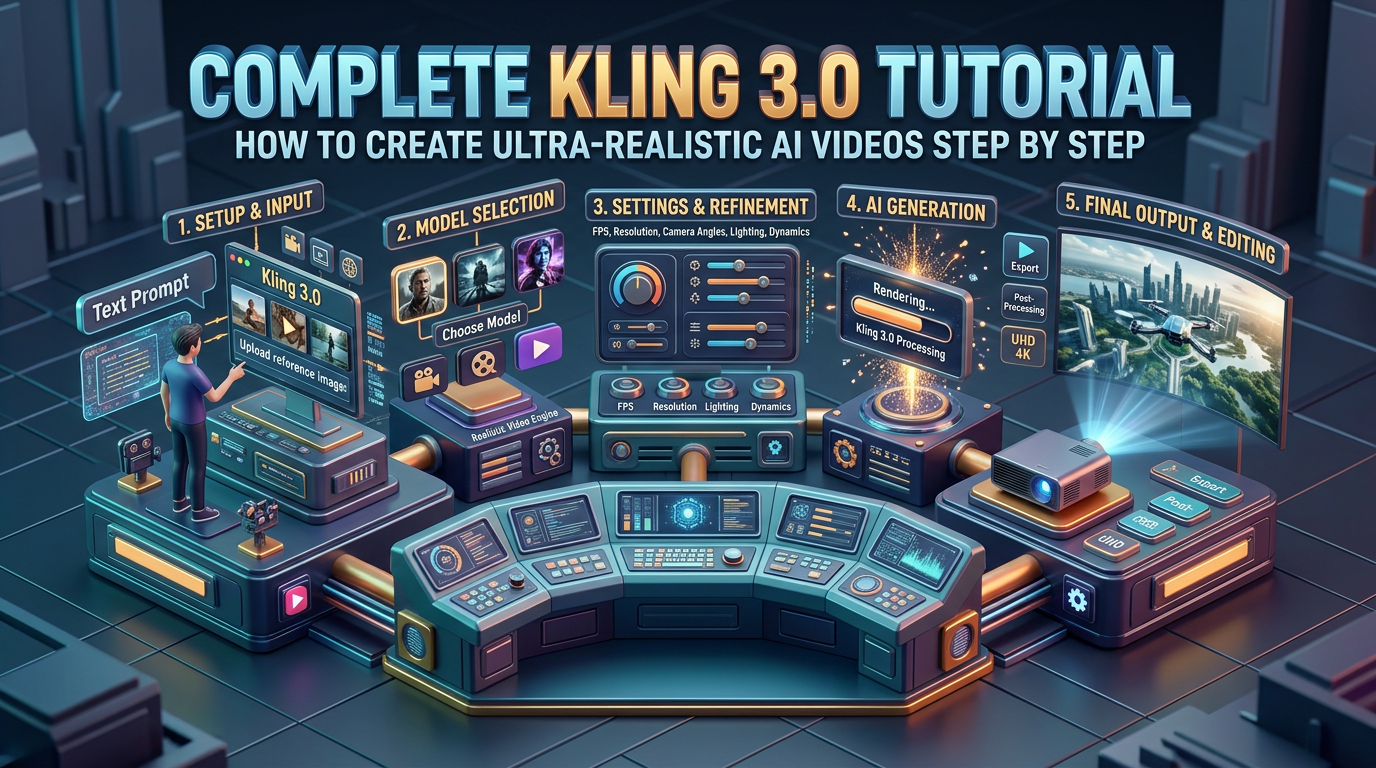
Complete Workflow: Create an AI Video From Start to Finish
Stage 1: Plan the Concept
Define the purpose, audience, duration, visual style, and central message of the video.
Stage 2: Write the Script and Prompts
Break the idea into scenes. Specify dialogue, actions, camera framing, lighting, and sound where relevant.
Stage 3: Prepare Reference Assets
Create or select character references, product images, and starting frames if they will improve visual control.
Stage 4: Generate the Video
Select VIDEO 3.0, configure the available duration and resolution, and choose single-shot or multi-shot generation.
Stage 5: Review and Refine
Check movement, character consistency, dialogue, audio, framing, and visual defects. Adjust the specific instructions that need improvement.
Stage 6: Edit and Publish
Arrange clips, trim transitions, add subtitles and branding, adjust audio levels, and export the video using settings appropriate for the target platform.
How to Create Instagram Reels and YouTube Shorts With Kling 3.0
Vertical AI videos are useful for creators, marketers, educators, and small businesses.
Recommended Settings
| Setting | Recommendation |
|---|---|
| Aspect ratio | 9:16 vertical |
| Resolution | Highest practical supported setting |
| Duration | Match the script and intended pacing |
| Framing | Keep the main subject near the center |
| Audio | Native audio or audio added during editing |
| Captions | Add and proofread in post-production |
| Branding | Add logos and calls to action during editing |
Example Vertical Video Prompt
A photorealistic adult content creator seated at a tidy home-office desk, speaking naturally to the camera. Vertical 9:16 composition, medium shot, face positioned in the upper-middle portion of the frame, hands visible while gesturing, soft daylight from a side window, subtle background depth, realistic facial expressions, natural body movement, and a stable camera. Leave uncluttered space around the subject for subtitles added during editing.
Keep important visual details away from the edges and areas where platform controls or captions may appear.
Kling 3.0 Use Cases for Content Creators and Businesses
Product Advertisements
Generate product animations, cinematic close-ups, and promotional sequences for e-commerce brands. Check packaging, logos, and product details carefully.
Social Media Content
Create visual hooks, B-roll, short scenes, and cinematic backgrounds for Reels, Shorts, and promotional videos.
Short Films and Storytelling
Combine character references, dialogue, camera changes, and environmental audio to build narrative scenes.
Business and SaaS Promotions
Create conceptual scenes, lifestyle visuals, and product-led marketing videos. Use actual screen recordings or verified product footage when interface accuracy is essential.
Kling 3.0 Pricing, Credits, and Generation Costs
Kling video generation uses credits, so planning your clips can help control costs.
The official VIDEO 3.0 guide lists these rates for its documented configurations. Pricing and credit requirements can change, so confirm the current rate in your account before generating.
Kling AI
| Documented VIDEO 3.0 mode | 720p | 1080p |
|---|---|---|
| Native audio | 9 credits/sec | 12 credits/sec |
| Without native audio | 6 credits/sec | 8 credits/sec |
| Voice-tone control add-on | 2 credits/sec | 2 credits/sec |
For example, based on the listed rates:
- A 5-second, 1080p video with native audio costs 60 credits.
- A 10-second, 1080p video without native audio costs 80 credits.
- A 15-second, 720p video with native audio costs 135 credits.
Voice-tone control is an additional charge where supported. Actual costs may differ if the platform updates its rates or changes the selected model configuration.
How to Reduce Wasted Credits
- Test your concept with a short clip before generating a longer sequence.
- Use reference images when consistency is important.
- Avoid unnecessary camera movements and complicated prompts.
- Correct specific issues instead of changing every prompt element.
- Review the displayed credit cost before confirming a generation.
- Save successful prompts for future projects.
Check the official Kling AI website for current pricing and account options.
Common Kling 3.0 Mistakes and How to Fix Them
| Problem | Possible solution |
|---|---|
| Character appearance changes between shots | Use consistent references or reusable character elements |
| Movements look unnatural | Simplify the action and describe the physical movement |
| Camera movement is unpredictable | Specify one primary camera movement |
| Dialogue is assigned to the wrong character | Identify each speaker and provide separate dialogue instructions |
| Product branding becomes distorted | Use visual references and correct branding during editing |
| Video feels rushed | Reduce the number of actions or adjust the duration |
| Background changes unexpectedly | Describe the environment consistently |
| Audio does not match the visuals | Specify dialogue, ambience, and sound effects separately |
| Text is incorrect | Add important text and subtitles during editing |
| Credits are consumed too quickly | Test shorter clips and review settings before generating |
Kling 3.0 Video Quality Checklist
Before publishing your AI-generated video, review the following:
- The video matches the intended aspect ratio.
- The subject looks consistent throughout the clip.
- Movement and camera transitions appear natural.
- Dialogue and sound effects match the scene.
- No obvious visual distortions or unwanted objects appear.
- Branding, subtitles, and on-screen text are accurate.
- The video meets the platform’s technical requirements.
- Necessary rights and permissions have been checked.
Frequently Asked Questions About Kling 3.0
1. What is Kling 3.0 used for?
Kling 3.0 is used to generate AI videos from text prompts and supported visual references. Applications include product advertisements, social media videos, cinematic scenes, short films, and marketing content.
2. Is Kling 3.0 suitable for beginners?
Yes. Beginners can start with text-to-video using simple prompts. Multi-shot storyboards, reusable character elements, and advanced audio controls become useful as projects become more complex.
3. Can Kling 3.0 generate videos from images?
Yes. Image-to-video animates a reference image according to a written prompt. The result depends on the image quality, motion instructions, and selected settings.
4. Can Kling 3.0 generate dialogue and sound effects?
Yes. The documented VIDEO 3.0 workflow supports native audio, including dialogue and environmental sounds. Language and voice options depend on the selected workflow.
5. How long can a Kling 3.0 video be?
VIDEO 3.0 supports generation durations ranging from 3 to 15 seconds. Longer projects can be created by generating multiple clips and editing them together.
6. Can Kling 3.0 create multiple camera angles?
Yes. Multi-shot mode can generate sequences with different camera angles and transitions. Custom multi-shot controls provide more direct control over individual shot descriptions and timing where supported.
7. How do I maintain the same character across multiple videos?
Create a clear character reference, reuse the same core description, and use element-reference features when available. These methods improve consistency but cannot guarantee identical details in every frame.
8. Can I use Kling 3.0 for Instagram Reels and YouTube Shorts?
Yes. Select a vertical 9:16 aspect ratio when available, compose the subject for a mobile screen, and add captions and branding during editing where precise placement is required.
9. Is Kling 3.0 free to use?
Access, free credits, subscription plans, and generation limits may change. Visit the official Kling AI website to check the options currently available to your account.
10. What makes a good Kling 3.0 prompt?
A good prompt describes the subject, action, environment, camera movement, lighting, and visual style. Include audio instructions where needed and describe individual shots separately for multi-shot videos.
11. Can Kling 3.0 generate realistic advertisements?
It can create cinematic product and lifestyle visuals for advertising concepts. Businesses should verify product details, logos, packaging, factual claims, and required disclosures before using generated content commercially.
12. Is single-shot or multi-shot generation better?
Neither is universally better. Single-shot generation is useful for continuous actions and controlled camera movements. Multi-shot generation is better suited to stories, dialogue, and advertisements that benefit from different camera angles.
Conclusion: Master Kling 3.0 for Better AI Video Creation
Kling 3.0 gives creators a practical way to turn written ideas and reference images into cinematic video content. Its text-to-video, image-to-video, multi-shot storytelling, character-reference, and native-audio capabilities can simplify many stages of video production.
The most effective workflow is to start with a clear concept, write a focused prompt, choose the right generation method, and evaluate the output before creating more complex scenes.
For consistent results, prioritize clear movement instructions, stable character references, purposeful camera work, and careful quality control. Use multi-shot generation when the story needs several angles, and image-to-video when the original visual must remain recognizable.
AI generation does not replace every aspect of filmmaking. Editing, sound mixing, factual review, and creative direction remain important for professional results.

Leave a Reply